Help Page
Main Menu
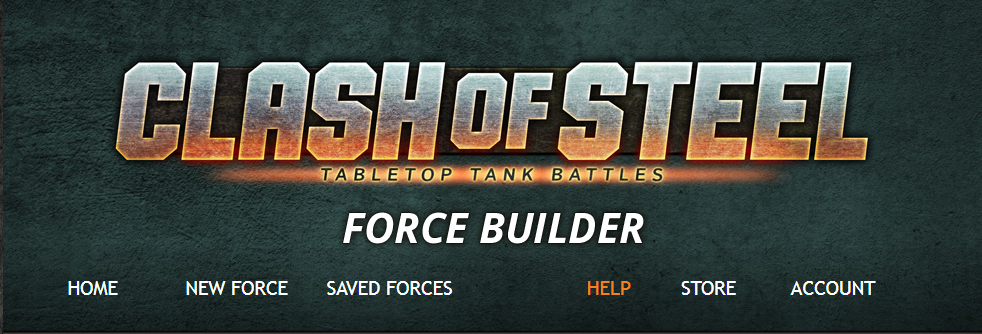
Home:
Lists new information about the site, as well as Quick Links
for quickly selecting a specific book.
New Force:
Links to books to start a new force.
Saved Forces:
Lists Force Name, Nation, and Points of any list you have
saved, as well as options to Select (for modifying or printing), Rename, or
Delete them.
Help:
This help page.
Store:
Redirects you to the Online Store
Account:
When not logged in, allows you to log in. When logged in, allows you to log out, change
password, or change email address
Force Diagram:
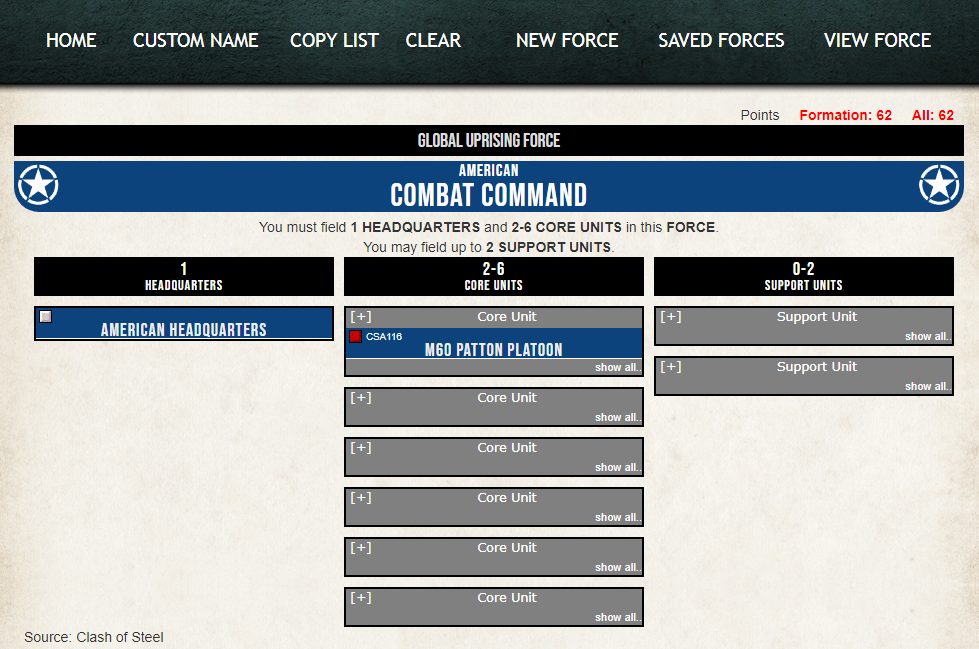
Main page for selecting Units. To open or close the Core and Support boxes, click on the gray area of the box. If a box already has a unit selected, the small square at the top left of the unit will be red instead of grey.
Home:
Sends you back to Home page.
Custom Name:
Allows the Force to be renamed.
Copy List:
Allows you to copy the Force.
Clear:
Removes all selections you have chosen for the
Force.NOTE: If this list is already Saved, the Saved list
will be reset also (zero points).
New Force:
Sends you to the New Force page
Saved Forces:
Sends you to the Saved Forces page
View Force:
Sends you to the View Force page
Unit Diagram:
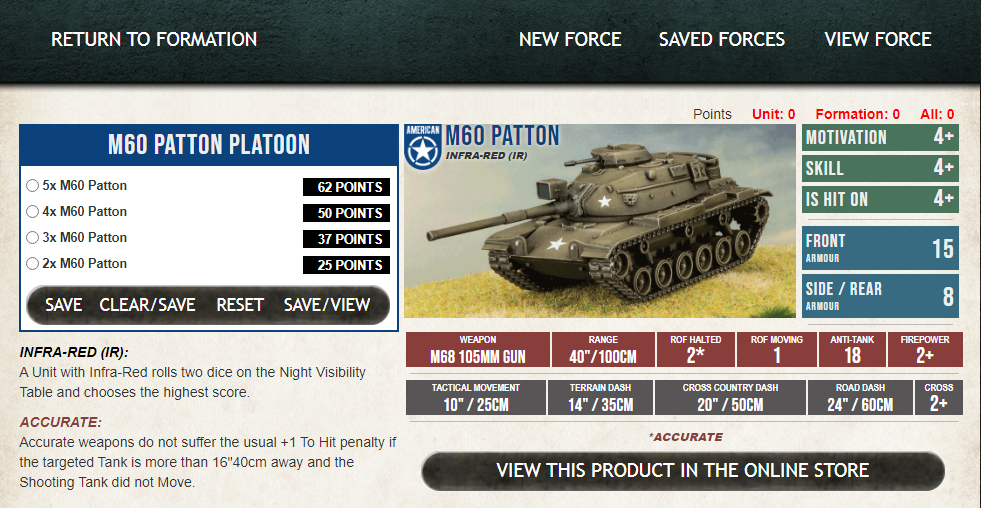
Displays information for the Unit and allows you to select
the quantity, as well as Options upgrades. The menu bar is the same as the Formation Diagram page.
Save:
Saves your current selection. NOTE: You must Save your changes before
navigating off this page, or any changes will be lost.
Clear & Save:
Clears all selections on this Unit and
Saves the data.
Reset:
Changes the selections back to what the original
Saved data was when you first entered the page.
View this Product in the Online Store:
Takes you to the
Online Store and to one of the models available for this Unit.
View Force:
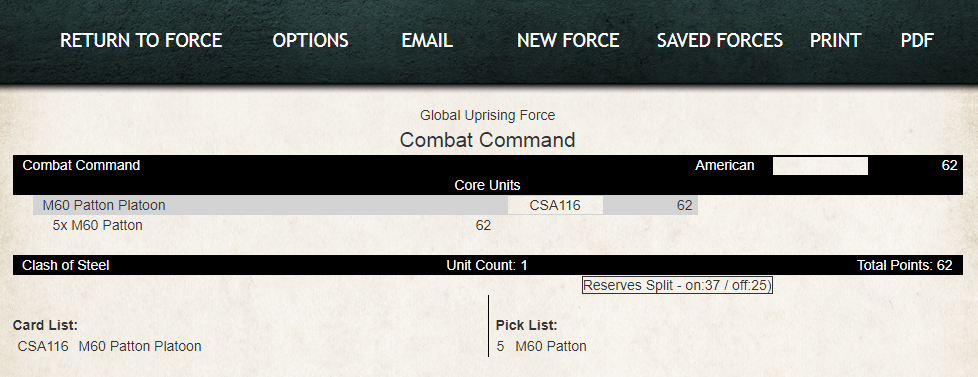
Display the selections and points totals.
Return to Force
Takes you back to the page you selected View Force from.
Email
Sends a copy of the list to your email address.
Print
Opens a system print dialog to print the list.
PDF
Creates a PDF of the list.